PATTERNS PLATE 19 – GIMP CHARTING TUTORIAL 106
And page 19:

More doodles from my notebooks, both old and recent, but I have not published any of these before.
The interlace in #112 reminds me a lot of some of the more famous portraits of Henry VIII, but there’s nothing on any of them that is a direct parallel, and nothing about it that would limit its use to Henry’s lifetime. It would be killer done either infilled in gold, or on a voided background, perhaps on a book cover, pouch or sweet bag. Sweet bags were sort of like Elizabethan/Stuart gift wrapping. They were little decorative purses used to convey small presents. Similar small stitched bags were sometimes used as needlework tool kits (occasionally they come with a matching pincushion), or to hold mirrors or other grooming aids.
On the charting tutorial, other than a couple of install queries and a nastygram noting that I’m an idiot for giving away the pattern pages, I’ve had almost no feedback, so I am unsure of what problems folk are facing. I can’t say I can answer every question and I certainly am no computer expert, but I’ll try. And I do have evidence that people are finding these posts useful, so nastywriter – take a hike.
In fact, if anyone is or has done stitching based on these patterns, please feel free to send me a picture or a link. With your permission, I’ll repost the image or the link here in the gallery of works done based on my patterns.
GIMP Charting Tutorial 106 – More Drawing Hints
By now everyone playing along should be able to draw. Here are some more methods and hints:
A way to erase: Select the Pencil tool from the Toolbox. In its settings window, choose
Mode: Color Erase
Now draw a new line on top of the segment you want to disappear. This is very useful for small touch-ups rather than wholesale deletions.
Another way to erase: Select the Eraser tool from the Toolbox (looks like a little piece of pink bubblegum). Set the brush size to something larger than the Circle(01) setting we use for drawing. Make sure the Hard Edge box is checked. Drag the eraser over the part that needs to go. Not quite as fine-tuned as the method above, but effective.
Yet another way to erase: Use one of the selection tools (the square, circle, lasso, wand or color select icons at the top of the Toolbox) to highlight the offending bit. Hit your delete key.
To flip (aka mirroring):
Select the bit you want to flip. <ctrl>C to copy and <ctrl>V to paste. The area selected will look all twinkly, and you’ll note the creation of a new temporary layer in your layer toolbox:

Now with the area to be flipped all twinkly, click on the Flip icon in the Toolbox:

Note that I’ve got the first option under Affect selected – that flips the entire (temporary) layer where the bit I just pasted lives. That flips my image over. Now comes a tricky bit. One would think that once the bit has been flipped, it can be easily dragged into place. Not reliably so. I’m not sure why, but switching to the Move icon (the four-way arrow) and trying to drag the bit around doesn’t work. What I usually do is after flipping the image so that it’s in the orientation I want, and while it’s still twinkly, I use <ctrl>X to cut it into the paste buffer, then paste it back into the drawing with <ctrl>V. NOW I can mouse over it until I get the movement icon (looks like a four-way arrow) to drag it into position.
Here’s the result of copying, pasting, flipping, then re-cutting, pasting and finally nudging into place a simple heart:
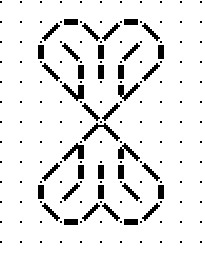
It sounds complex, but since most of the work is control-key or arrow presses (see tweaking, below), it’s really quite quick and easy.
To tweak alignment:
Sometimes when a pasted, rotated, or moved bit is inserted into the drawing it ends up being out of alignment on the grid. This is because the selection box is constrained in size so that even if its origin is on the grid, its termination is one pixel shy. However, fixing minor alignment problems is easy. Select your offending bit (the lower heart in the sample below), and use your keyboard arrow keys to nudge it into place. Again, like in Flip, I have the best success doing this by selecting, <ctrl>X to cut, <ctrl>Y to paste, then using the arrow keys to nudge the pasted bit into place. Please don’t ask me why the Move command doesn’t seem to work reliably for this. I haven’t a clue.
Rotating:
Again similar to Flip. Select the bit to be rotated and copy/paste it to create a temporary layer. Click on the rotate tool, then on the twinkly selected pasted area. The rotate dialog box will appear:
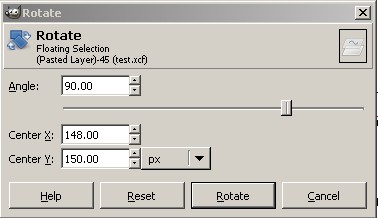
Rather than drive myself nuts trying to freehand rotate, I type my desired angle into the Angle box in the rotate dialog. In our case that’s an easy 90, 45 or 180 degrees. Usually 90. Then I click on the “Rotate” button in the Rotate dialog box.
The selected bit will appear in its new orientation. For whatever reason, moving the image post rotation is better behaved than moving it post-Flip. I can usually click immediately on the rectangular selection tool (first in the Toolbox), then mouse around to get the move indicator, and arrow the still twinkly rotated selection into place. Here’s the just rotated image, prior to final tweaking:
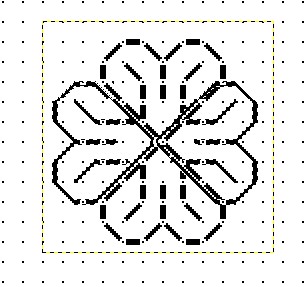
And here’s the same image, after I’ve nudged the two new petals (at 9:00 and 3:00) into final position using my arrow keys.

Anchoring temporary or floating windows: Sometimes I end up with a floating or temporary window that I want to merge into my main pattern area. Easy. <ctrl>H nails it down.
Deselecting all selection boxes: Sometimes I want to pencil in a line, but click as I might, no line appears. What’s usually happened is that I’ve got a selection box active somewhere. <Shift><ctrl>A will turn off any that might be in use.
So ends this basic GIMP charting tutorial. We’ve only touched on some of the simplest options and commands available in GIMP, but covered most of the tools needed for this type of charting. I will leave color selection to you, but I’ll report back when I’ve figured out cloning via the Stamp tool. Please let me know if you have found this to be useful.
PATTERNS PLATE 18 – GIMP CHARTING TUTORIAL 105
Here’s page 18:

#103 and #108 are fillings I’ve stitched before on my underskirt, coif and other projects. The rest are new. To be immodest, I’m quite fond of my acorns (#105). I think that will have to end up on my current work in progress. Yes, I do have another work in progress, and no – you haven’t missed it. I haven’t previewed here yet.
GIMP Charting Tutorial 105 – Finally! Drawing The Design.
If you’ve been following along, you should now have a GIMP document with four layers in it, a background, a dots layer, one called PATTERN HERE, and one entitled Donuts.
We’re now ready to draw.
Using the Layer Navigation window, click on the PATTERN HERE layer. Obviously, all drawing will happen here. If you’ve saved, quit then re-opened your work you’ve probably noticed that Snap to Grid has turned itself off. Double check and make sure that it’s selected: VIEW-Snap to Grid.
NOTE: THE FOLLOWING INSTRUCTION STEP HAS BEEN EDITED TO WORK BETTER WITH EDITIONS OF GIMP AVAILABLE IN MARCH 2015:
I prefer a thicker rather than thinner line when I draw my pattern. I think it’s easier to see and count. To get it, I select the Pencil tool in my Toolbox and use the following pencil settings:
Mode: Normal
Opacity: 100.0
Brush: Circle (02, Hardness 100)
Scale: 1.30
Dynamics: Basic Simple
(None of the other settings should be checked off)
Making sure that my Color Specification boxes are set up so that the color I wish to draw with is in the top (overlapping) box, I can now draw.
With the pencil selected, I click on a dot, then holding down the shift key to constrain my line to be straight, I click on the dot marking the end of my run of stitches. What I end up with is one straight line, divided up into individual stitch units. In the example below I’ve drawn a four-unit stair step by making six clicks:

So we’re now off and running. Some things to remember as you draw your designs:
1. If you’ve got the pencil tool selected and you think you’re drawing but no line appears, check to make sure that you don’t have an active selection window. To close any that might be open, use A.
2. To cut, you can use the selection box in the upper left corner of the Toolbox window or any of the other selection tools. The box is easiest to use because you can constrain it to snip out pieces even with the grid, making pasting on the grid easier.
3. It’s a bit easier to copy an area, then paste it immediately (using V) and then drag the result to its final resting place than it is to copy an area, reselect the original and THEN paste. If you do this, the new bit will end up in the middle of the active screen and grabbing it can be difficult.
4. If you paste something and wish to move it, mouse around until your cursor turns into a four-way arrow. If you don’t see the four way arrow and try to click and drag the newly pasted bit, you’ll excise and paste a small area of it in the current location instead. If this happens, remember that Undo Z is your friend.
5. OH NO! My drawing disappeared! No problem. You probably killed the entire PATTERN HERE layer by hitting X instead of Z. Undo with a real Z.
6. Moving using the Move tool (the little four-way arrow in the Toolbox) is manipulating the layer rather than the bit I just pasted. If this happens, check the options box for the Move tool. There’s a row of icons across its top. One is labeled layer, one is labeled selection (mouse over to show labels). Make sure selection is highlighted, not layer.
Tomorrow we’ll cover image manipulation – flipping, mirroring and rotating. At that point we’ll have pretty much covered all I know about using GIMP for charting these patterns. If you have any questions on the material in this series, please feel free to post them here.
PATTERNS PLATE 17 – GIMP CHARTING TUTORIAL 104
First, page 17:

#97, #101, and #102 are recharted off previous embroidery projects. The others are new, more doodles devised while I was preparing this collection. Most of the coming pages feature at least one fill as elaborate as #100. They’d be good for using in large, outlined areas, or as stand-alone fields on a sampler like those in the lower half of the famous Jane Bostocke sampler.
GIMP Chart Inga Tutorial 104 – Building the Design and Mask (aka Donut) Layers.
In the last post we learned how to start a new layer. We need two more. First use LAYER-New Layer to create another new one. Name this one “PATTERN HERE”.
Now it gets interesting. You’ll see three layers in the Layers navigation window. Background, Dots and PATTERN HERE. PATTERN HERE is shaded. Click on the layer named “Dots.” It should now be shaded. We want to create a new layer, cloned from this one. So, making sure that the Dots layer is shaded in the navigation window, use LAYER-Duplicate Layer. You’ll notice a new one named “Dots Copy” added to the navigation window. In that window, click on Dots Copy and drag it to the top of the stack. Your Layer navigation window should now look like this:

For the sake of our sanity, let’s rename “Dots Copy.” In the navigation window, right click on Dots Copy and choose “Edit Layer Attributes. This will open a window that will allow you to give the layer a new name. I suggest “Donuts.”
You now have four layers: Donuts, PATTERN HERE, Dots and Background.
Let’s create our donuts. Make sure that Donuts is highlighted in the Layer navigation window. Then choose the Select by Color Tool from the Toolbox window. This is the one that looks like little stack of blue, red and green blocks, with a finger pointing to the red one. With that tool highlighted, click on any dot. ALL of the dots will begin flickering. (That’s good). You’ve now selected all of them.
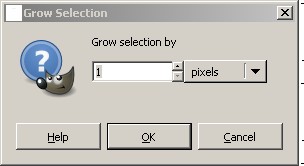
To draw the donuts, we’re going to use a couple of special command. With your dots select use SELECT-Grow to get the Grow Selection dialog box. Type 1 in the “Grow Selection by” fill-in:
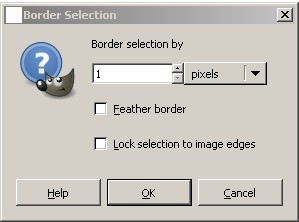
Now let’s exclude the dot at the center by using SELECT-Border to get the Border Selection dialog box. Type 1 in the “Border selection by” dialog box:
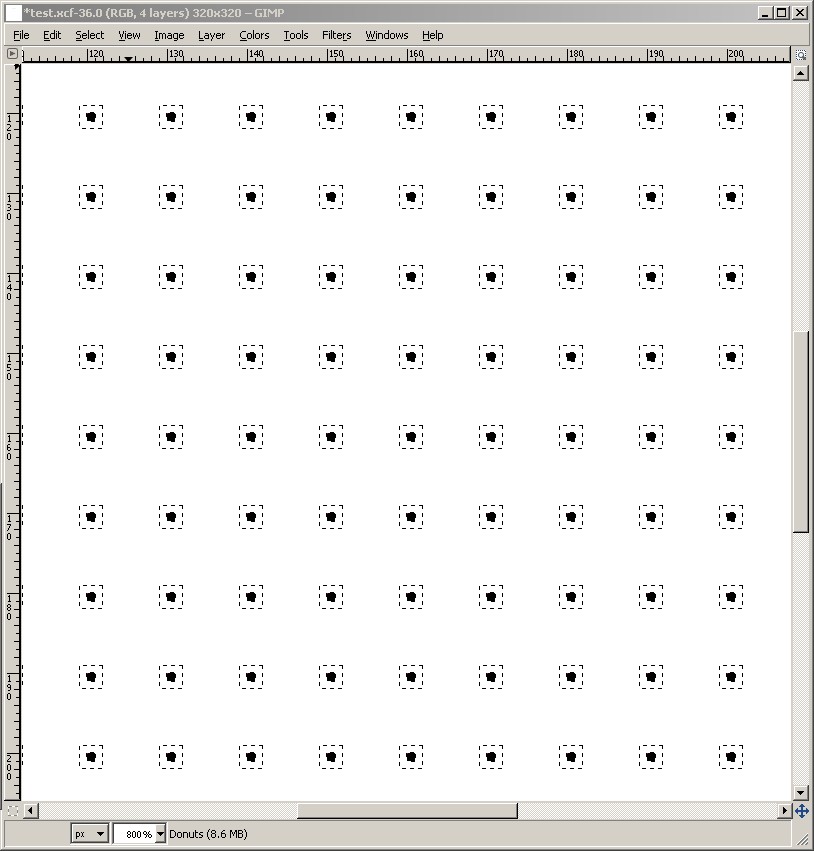
Now I suggest you zoom in more: VIEW-Zoom-8:1 (800%). This is what you’ll see:
We need to fill the newly constructed borders with white. Up in the Toolbox in the lower left corner of the top panel, you’ll see two overlapping Color Specification boxes, with a little 90-degree two-headed arrow next to them. Click on the little two-headed arrow. This will swap your previous background color (white) with your old foreground color (black). You are now ready to use the color white to fill the donuts. Choose the Flood Fill Tool (it looks like a spilling paint bucket) and place the tip of its arrow cursor inside one of the highlighted donuts. Click, and ALL of the donuts will be filled with the color white.
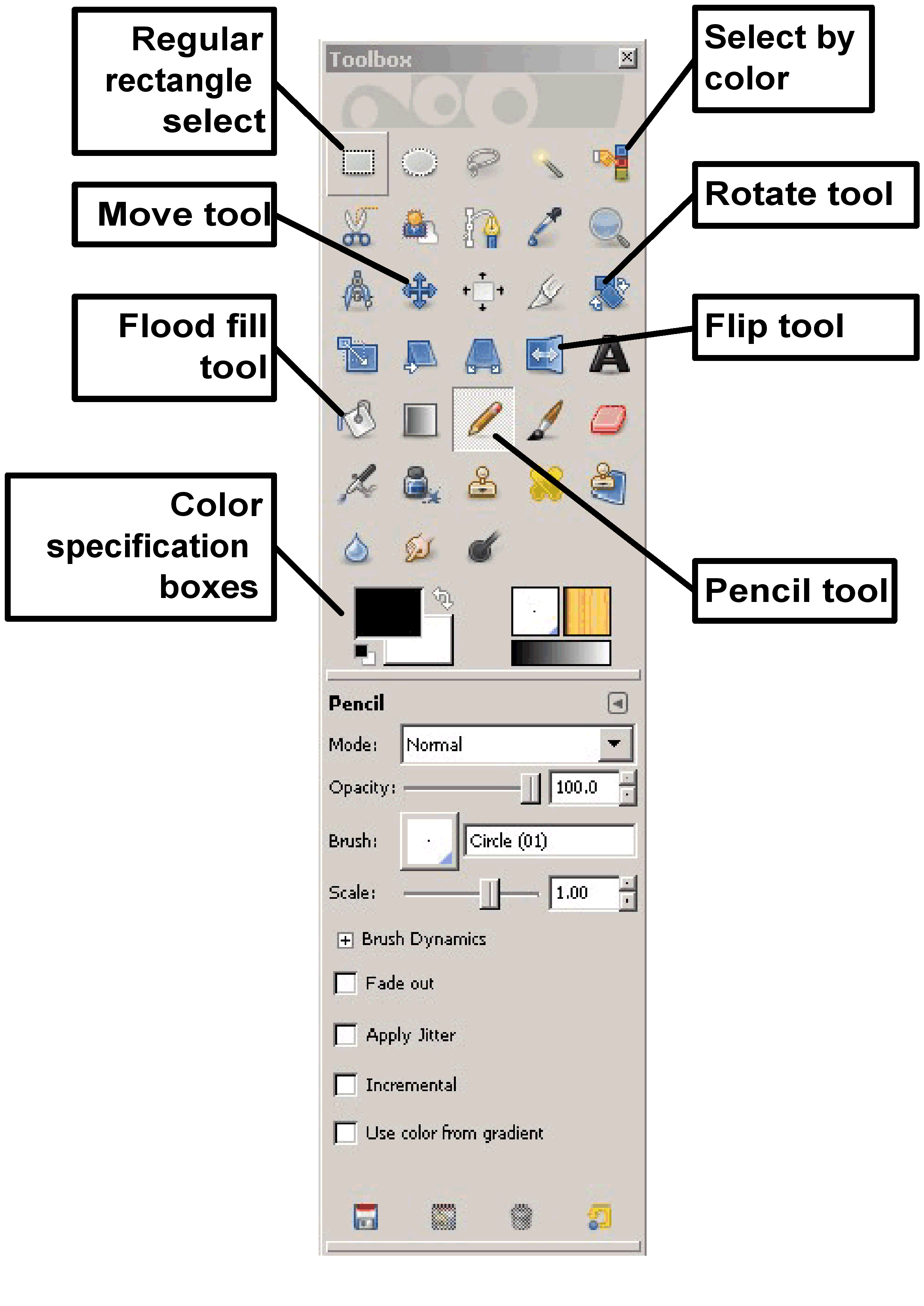
Now we need to get rid of the black dot in the center of each donut. Go back to the Select by Color tool (the stacked blue/red/green block and hand in the Toolbox), and click on one of the black dots. The outline around your donuts will disappear, and the dots will be highlighted again. With the dots highlighted, hit <ctrl>X. You will still see dots (they’re on the Dots layer), but the ones on the Donuts layer will now be gone. You can test this by clicking on the little eye next to the Dots layer in the Layer navigation window. Click the eye next to Dots, and the dots on your screen should disappear. Click it again and they’ll return. Remember to save your work.
We now have our base grid structure and mask all set up, and we are now ready to draw a design. But more on that tomorrow.
PATTERNS PLATE 16 – GIMP CHARTING TUTORIAL 103
On to Page 16:

We’ve got ribbons (#91, use ganged like this or as a single border); another twirly (#93), and a bunch of wildly obvious tiny spot patterns (#94, six in one plate). I’ve used all of these teenies in my old projects, they’re very handy for filling in spaces too small to use other, larger patterns to any good effect. And they’re also very useful for background fields in voided work. It’s interesting that #96 at a distance reads like a basket weave. You can see that in the thumbnail.
GIMP Charting Tutorial 103 – Building the Dot Layer
O.k. Yesterday we opened the program, opened the Layers window and set our grid spacing constraints. Today we get to use those things to add a layer called “Dots”:
LAYER-New Layer
You should see this dialog box:
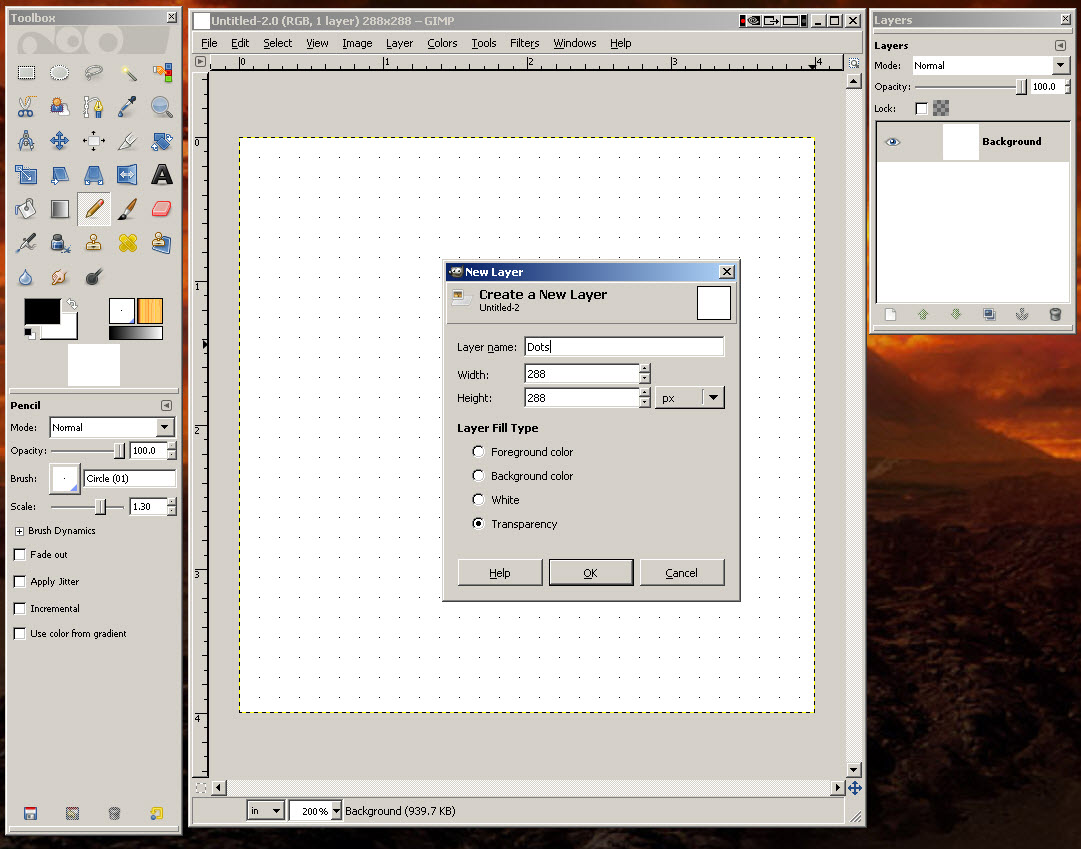
Type in “Dots” for the layer name. Width and height should both be 320 pixels. The fill type should be “Transparency.” Except for the dots we’re going to draw, this layer should be see-through. Once you confirm that the settings are correct, press “OK.”
You’ll see that the new layer has been added to the layer management window:
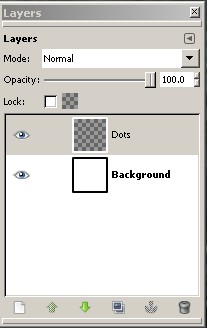
The shaded area on the layer management window shows you which layer is currently active – the one on which all changes you are making will be stored. You can hop among layers by clicking on them in this window
Now we can add our dots. To make the dots I’m adding easier to see, I’ve taken the highly optional step of making my original grid indicators appear in red (this is back on the EDIT-Preferences-Default Grid dialog. Foreground color = red).
To add dots, I select the pencil tool on the Toolbox window. Tool-specific options will appear below the cluster of tool icons every time you activate a tool.
To make our dots, we want to use the following pencil settings:
Mode = Normal
Opacity = 100.0
Brush = Circle (01) – that’s chosen by clicking on the little square and picking the SMALLEST available dot.
Scale = 1.00
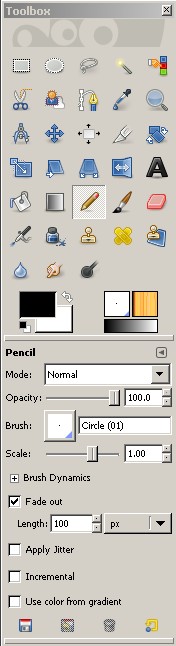
Now we can begin adding dots. Again to make life easier, zoom in on the active image:
VIEW-Zoom-2:1 (200%)
You can also increase the size of your drawing window so that the entire editable area is visible.
Now using the pencil tool, click on EVERY ONE of the background grid dots. “Oh no! This is tedious”, you say. You’re right. We’re going to cheat.
Click on a bunch of them, drawing about 3 or 4 rows of 6-10 dots. Now we’re going to copy and paste them. Because we’ve got our grid set we will be able to see exactly where to paste them.
Select the square selection tool (the dotted line box in the upper left corner of the toolbox. Center the cross hair cursor it provides on your upper/leftmost dot, and drag the purple selection box to encompass all of the dots you wish to copy. (Make sure that the upper left corner is exactly centered on one of your drawn dots.) Hit <ctrl>C to copy.

Now hit <ctrl>V to paste. The new dots will appear exactly on top of the old dots, making everything look “twinkly.”
Move your cursor back over the area that’s twinkling until it turns into a little four-way compass arrow, now click and drag the twinkly dots on top of your grid dot indicators, taking care that they align exactly. If for any reason this goes wrong, do not despair. GIMP offers (near) unlimited <ctrl>Z undo.
I repeat this process, grabbing ever larger areas of dots and pasting them until my entire field is filled. Needless to say, for a whole page this can get tiresome, but once that page is set up and saved it’s there for infinite re-use. Speaking of which – make sure you save your work before going on.
In the interests of making these posts manageable, I’ll end here. Tomorrow we build the drawing and donut mask layers.
PATTERNS PLATE 15 – GIMP CHARTING TUTORIAL 102
Here’s 15!
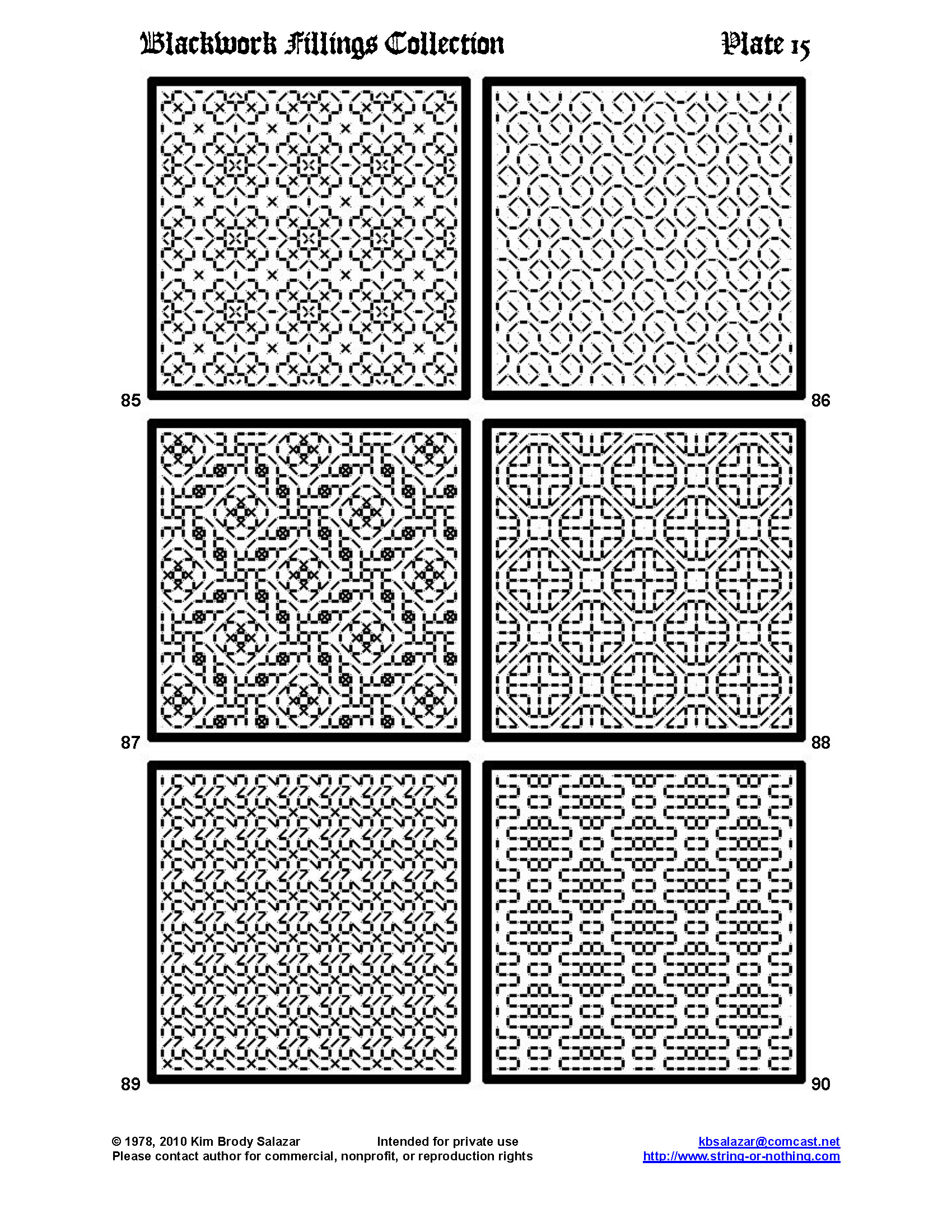
All of the patterns on this page are new, doodled up as I was transcribing the older ones from previous booklets and previous projects. I’m a sucker for interlaces. Try #87 with other small spot motifs (or nothing) in the centers of the intertwined wreathes. #88 is fun. It’s all 90-degree and 45-degree angles, but it gives the impression of close packed globes. #89 is not quite as mind bending as some of the other eccentric repeats. Younger Daughter sees two different design shiruken in it, but I think she’s been reading too many manga.
GIMP Charting Tutorial 102 – Getting Started
To start, obviously you’re going to need to download the software. As I mentioned before, it’s free, and its available here. You’re on your own installing it on your particular machine. I don’t have access to a Mac or Linux machine here at home, but I’m assuming that look/feel are very similar across all platforms. Also, I’ll be covering this pretty slowly, aiming at folk who are totally unfamiliar with this style of program. I know lots of you are further along the learning curve, and will be tempted to skip ahead. “Go right ahead! Get messy! Make mistakes!” That’s the fun of learning.
Upon opening the software you’ll see something like this (the red/orange is my desktop background, not part of the program):

The small, empty window is the program’s main work area. The long narrow window contains the toolbox of available commands. It may be smaller than this to start – I happen to have the detail control for the pencil tool displayed. You’ll note that unlike many programs GIMP’s various subcomponents can be opened or closed, or put anywhere that you find convenient. My first step is always to open the Layers subwindow. You’ll find it under the “Windows” command in the main window, under the menu entry “Dockable Dialogs.” I’m going to abbreviate the command tree like this:
WINDOWS-Dockable Dialogs-Layers
All caps will always refer to a menu item in the top line toolbar of the main GIMP window, with the items after that being in order of selection from that command’s sub-menus.
Now we have three little windows open. The main GIMP window, the Command Toolbox, and the Layers window (shown on the left of the Command Toolbox for now, but you can put it anywhere):

Next is to establish the settings and preferences we need to make drawing on a constrained grid quick and easy. I tried out many grid spacings before settling on these recommendations. Feel free to experiment, but start with this combo for the same look/feel I was using:
Open a new drawing: FILE-New
This will open a dialog box in which you can specify your new file’s size, and the measurement units used in it. I suggest something small to start. My little filling pattern swatches were squares of 320 pixels. And yes – I do advocate you use pixels as the measurement unit for now.
Specify the grid spacing: EDIT-Preferences
This opens up a large universe of settings to play with. We’re only concerned with grid spacing. Look for the Default Grid icon in the Preferences pop-up box. Click on that.

Under Appearance, select Intersections (dots) – this will render the reference grid in dot form so you can see where to draw your own later. For Spacing, enter 10 pixels width and 10 pixels wide. Under Offset, make sure both values are zero. Click OK. We’ve now got our grid, now we need to show it and constrain drawing so that we (mostly) end up creating dots and lines aligned with it.
To show the grid: VIEW-Show Grid
To constrain most drawing to the grid: VIEW-Snap to Grid
Your drawing canvas should now look like this:

Save it. Good job. In the interests of keeping these posts manageable we end here. Tomorrow we’ll explore creating layers, configuring the pencil tool for making dots, and making the dot layer.
PATTERNS PLATE 14 – GIMP CHARTING TUTORIAL 101
We forge on to Page 14:

Of these, #79, #80 and #84 appear on my skirt. The others are new, doodled up as I was working on this collection. And here’s the start of the promised tutorial on using GIMP to do exactly that. Please note that Elder Daughter noodled out this method, which we then confirmed that others were using as well. (There are few things as useful as a home-bred brain trust.)
How to Use GIMP for Line Unit Charting – Drawing Metaphors
For starters, let’s talk about drawing metaphors. Piece of paper and a crayon. Nice opaque paper. Nice (mostly) opaque crayon. That’s what many drawing programs feature, and what almost all of the stitch painting programs use. You draw something on the page, it’s there in one spot. It can be erased, rotated or moved, but it’s embedded on the page once it lands. Draw a cow next to a barn with an open door, and the cow stays there. It can’t be peeled off, razored out or slid over to stand in, on, or behind the barn without leaving a cow-shaped hole where it used to be (or taking a bit of the barn behind the cow along if you select and move the cow).
MS Powerpoint and other lower-end drawing packs go one better, by adding a cut-paper collage type element to the crayon metaphor, with things that can be placed on top of other things. But even these “pieces of paper” ride not as independent layers but as daughter elements on a single page. And the stitch charting programs mostly stick to the crayon or collage models, although they do enable selection by a discriminating feature – in their case usually stitch type or color. There’s always room for quibbling, but by and large, these programs all reside in a very flat world.
GIMP does not work like this.
GIMP like many other higher end graphics programs offers multiple opaque, semi-opaque or transparent layers. Sounds confusing, but it isn’t. Think of it like an old-fashioned animator working on a cartoon. Animators worked in layers, painted on multiple sheets of a transparent plastic like material. When finished, those layers were stacked up, and the viewer looked down through the entire stack, seeing through the transparent bits to the drawings on the layers below.
For an animator the lowest level would have been the background. In our farm scene, perhaps the green of the grass, darker green of the trees in the distance, and blue of the sky. Nice and solid. Then the animator would layer one or more transparent cells on top of the background. The next layer might be see through except for a painting of one big open-doored barn on it, and only the barn. There might be a third see through layer on top of that with a fence that sits in between the viewer and the barn. Now for a top layer, also transparent, and again with just one design element drawn on it. That one may have nothing on it except the cow.
The animator could move these cells around. She could slide the one with the cow over so that the cow could graze on either side of the barn. She could change the order of the layers. If the cow layer was on top, it looked like the cow was outside the fence (between the viewer and the fence). If the cow layer was between the barn and the fence, Bossie was safe in her paddock. And if the cow layer was behind the barn and the cell was positioned just right, our pet could peek out of the open barn door.
This is how GIMP works. It allows you to use multiple layers to isolate individual design elements, and to mask the layers below. Layers can be totally independent, or they can be ganged so that if one is moved, its pals move too, preserving the spatial relationship among them. They can be moved, reordered, rotated, flipped, hidden, or rendered more or less opaque. Instead of thinking flat, crayon and paper style, to use GIMP you need to think in onion-like layers.
To draft my patterns I used four layers:
- A plain white background
- A layer of evenly spaced dots (the background dot grid)
- A layer containing the line drawings that make up the designs
- A layer containing little white “donuts” – very small white halos aligned to the dot grid in layer 2.
The dot grid in Layer 2 established my layout – the grid spacing for my stitches. Layer 3 contained UNBROKEN lines, constrained to the established grid. Donut-bearing Layer 4 “eclipsed” the black lines, making them look like they were drawn as dashes. The hollow center of each donut let just one little dot of the underlying black line (or naked dot from way underneath in layer 2) show through.
Once my basic four layer “page” had been constructed, the only place I did actual drawing on was Layer #3. I never touched the background, the dots or the donuts again.
For the record, I suppose I could have condensed this into three layers, with the dot grid appearing ON my background, but it’s much easier to delete and replace a non-background layer, so I went with four. I never underestimate my potential to make a dumb mistake, so I always try to leave myself a graceful way to recover, just in case it becomes necessary.
That’s the basic logic. The why of what I did. More on how to use GIMP to set up a four layer grid-constrained pattern page, starting in the next post.
SQUARES!
Given Chris Laning’s confirmation of our independently devised charting method, and my own impatience to get started, I’ve decided that using GIMP in the multi-layer mode is the way to meet my graphing challenge. That means one layer for background grid, one for pattern, and a “mask” layer of little white donuts around each grid point to separate the solid pattern lines into stitch units. Thanks also to Ariel who had a very innovative suggestion about using MetaPost, but the complexity of some of the patterns I will be doing will quickly exceed the practicality of her solution.
To practice up for these more complex designs I decided to regraph the collection of 72 blackwork fillings I published back in 1978, plus some more from my own notebooks that didn’t make it into that booklet. These are the fillings I used in the blackwork underskirt I stitched back in 1976-1977.


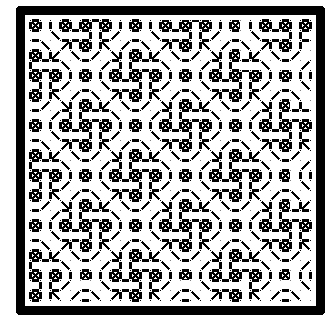
Not being able to resist a doodle-capable medium, I’ve done up a few more, too. I’ve got about 100 of these fillings now graphed out in neat little squares and ready to share, but I’ve not decided on the most efficient sharing method. I’m leaning to composing them into pages, and sharing the pages one by one, so that they can be seen before they’re downloaded. An alternative would be making a new PDF booklet and post that. In either case, my intent is to publish them here for free download under my own copyright, rather than try to sell the thing.
Here are two samples to whet your appetite. Any feedback? Suggestions?

And special thanks again to Chris, who has asked that I spread the word among both SCA and non-SCA stitchers about a valuable embroidery resource. The SCA’s West Kingdom’s Needleworkers’ Guild maintains a very useful on-line library of articles on historical stitching – all from the hands-on perspective. You can find it here. I guarantee hours of fascinating reading and inspiration!
DOUBLE RUNNING STITCH LOGIC 103 – ACCRETED AND HYBRID APPROACHES
Accreted Section Double Running Stitch Logic
I promised to discuss a second logic for double running stitch. I call this one “accreted section” and use it for the more complex patterns, especially non-linear ones.
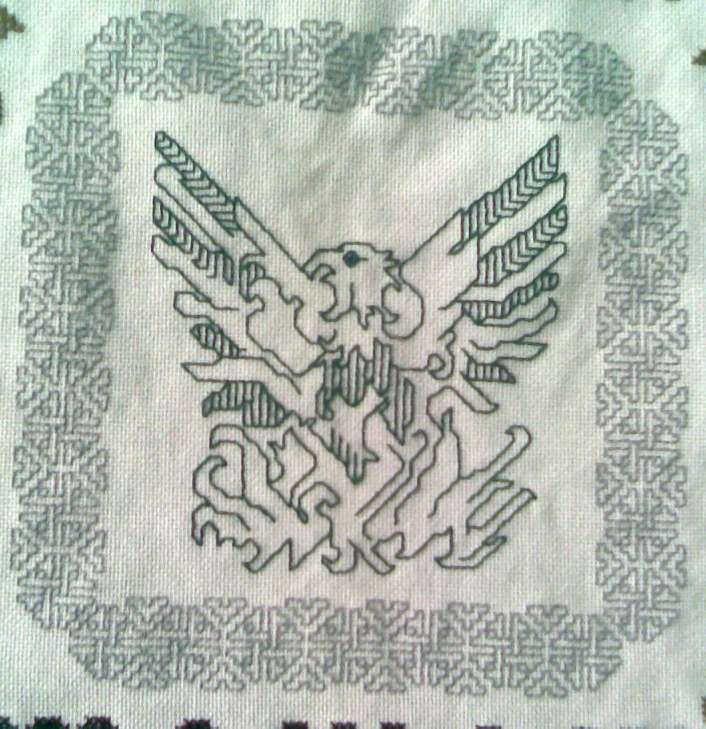
What’s a linear pattern? Pretty much any of the banded strapwork style strip patterns I’ve been using on the Do-Right and Clarke’s Law samplers. However the phoenix from Do-Right is distinctly non-linear:
I could work the phoenix using the baseline method by identifying one of a zillion possible baselines and following it in the usual way. The outline would make a good baseline:
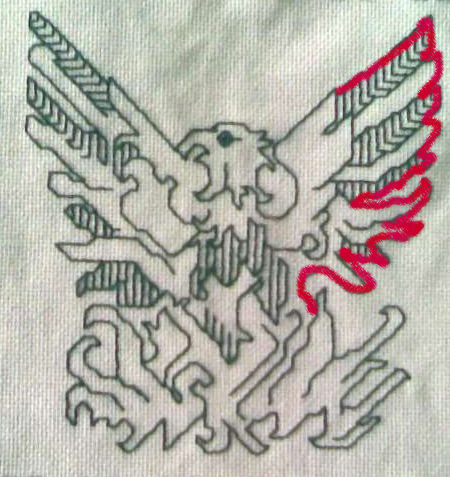
If I were to use baseline, I’d start at a point on the outline, then work in the indicated direction, following the little detours as I came to them. But in this case there are LOTS of detours. It’s too easy to get lost. For example, If I were to start at the indicated spot at the base of the flight feather, then continue up to the wingtip, it looks like I’d be following the little striations on the first feather. Not too hard. Little lines and hatchings like these make the pattern easier to follow because they can be easier to count than straight runs of stitching with few reference points to use for location verification. BUT I have a lot of possible detours. It’s very easy to start the feather with the stitch from the feather base to the first striation, then verge off down that bit of shading to the lower part of the wing and from there get lost in the body.
I find it easier to break up patterns like this into logical units:
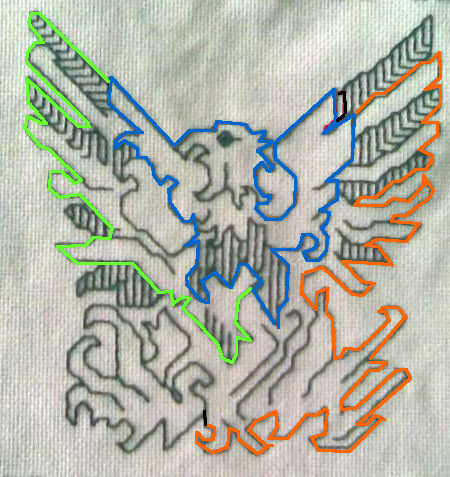
Purists will note that the blue segment might be considered a baseline, with the other elements as detours off of it, but that’s quibbling. For me at least, parsing the pattern into three units helps keep me on track. When I stitched this I started with the blue unit, working the bird’s neck and breast detail as departures from that line. I did have the luxury of not needing to do this piece double sided, so I did begin a new strand to work the green section, stitching the feather striations and other connected bits as I went along. The same with the orange section. I did that last, again working the feather stripe and flame detours as I came to them. The flame section at the pattern’s bottom left is a closed loop departure off of the orange line.
Baseline First/Hybrid Logic
So far I’ve established a visual baseline, then worked along it, stitching all departures from that baseline. The last step has been to stitch back along the baseline to complete the work. But sometimes it’s better to stitch the baseline first. Occasionally I work a pattern that way – making my first pass along the baseline to outline or otherwise establish the location and veracity of pattern placement, then working the details or fillings on the second pass:
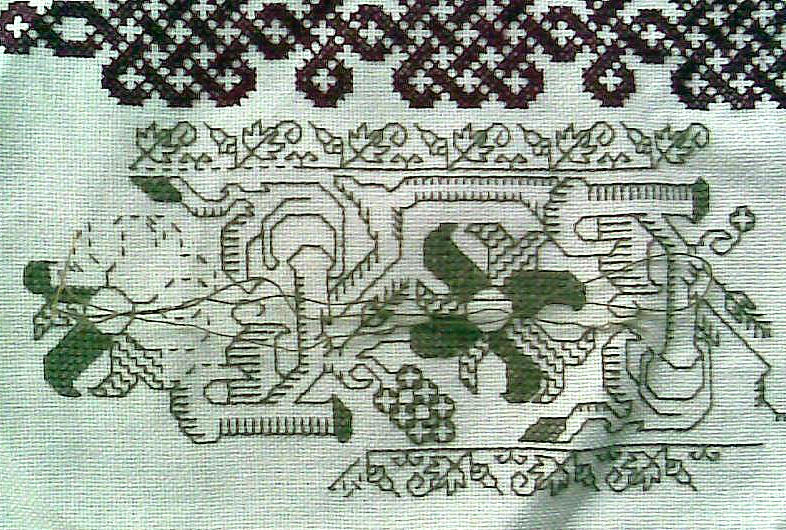
You can clearly see that I did that on this strip from Do-Right. I started with a baseline that outlined the flower, then on the second pass, filled in the petal details. In this case I worked using a hybrid logic. Instead of establishing one baseline for the entire repeat, I worked it more along the lines of the accreted method above – isolating the flower, then the branch from which it buds, and then the branch segment that connects this flower to the next (flipped) repeat.
For some very wide patterns, this mixed approach works best, especially if you’re using an in-hand tambour style round frame. With a round frame the area that’s taut and ready to work is quite small. Large repeats easily occupy more than the space at hand:
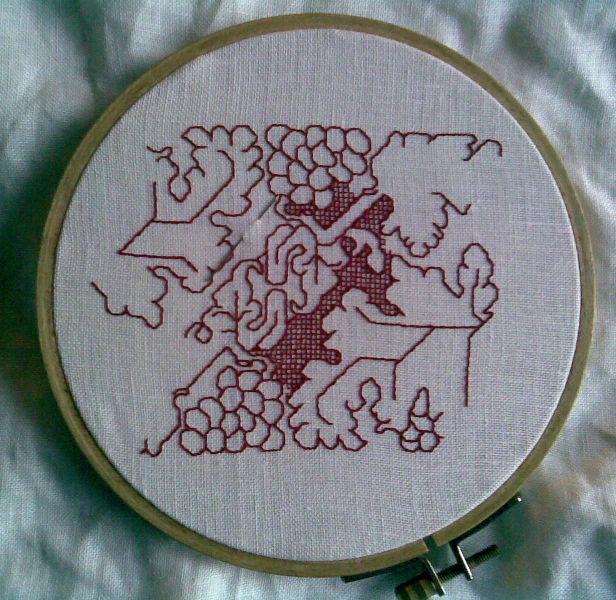
Being limited to the frame’s real estate lends itself to this compartmentalized, hybrid approach.
Having the luxury of using a flat, slate, or roller frame that provides acres of tautness makes a sprawling approach easier:
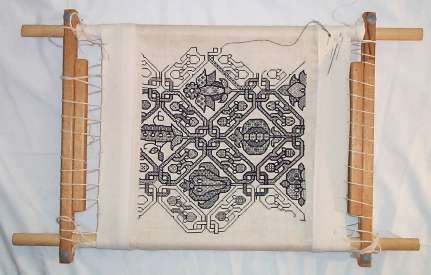
In any case, this concludes the series on double running stitch logic. Please feel free to ask questions. I don’t pretend to know it all, but chances are I’ve faced some of the same stitching problems that might be challenging you, and I’d love to help.
DOUBLE RUNNING STITCH LOGIC 102 – WORKING FROM THE BASELINE
Well, with luck this mini-series will be useful to someone out there. There is someone out there, right?
Continuing from the last post, now that we’ve figured out that our design can be worked double sided, and we’ve identified the baseline, how do we go about the stitching? What logic can we follow to ensure that no areas of the pattern are orphaned, and that all lines are covered?
The method most often followed is the baseline method. The other I’ll call “accreted section” and deal with it in a later post.
BASELINE
I find baseline to be pretty easy – nearly foolproof, provided the stitcher can remember the nested logic of detours-within-detours encountered along the way. Some stitchers keep a paper copy of the design, and overtrace it to keep track of where they’ve been. Some use a paper copy to try out their logic before committing needle and thread. I have to admit I do neither. I just go for it.
Let’s look at this pattern. It’s from my very first booklet on Blackwork, a hand-drawn photocopied piece done in my teens and distributed entirely within the SCA. I know I got this particular design from a historical source, but my original annotation wasn’t complete enough for me to include in later books or in fact to find the source again, so this design has sat on the shelf ever since. I’d consider this one to be a pattern of intermediate complexity, but well within the reach of most beginners (click on pix below for enlargements).
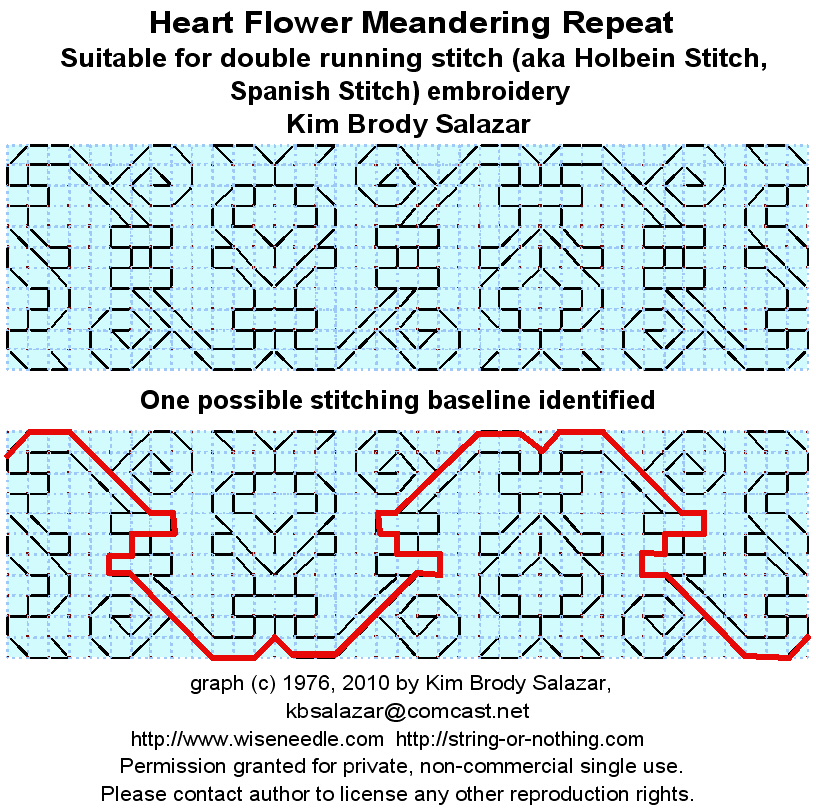
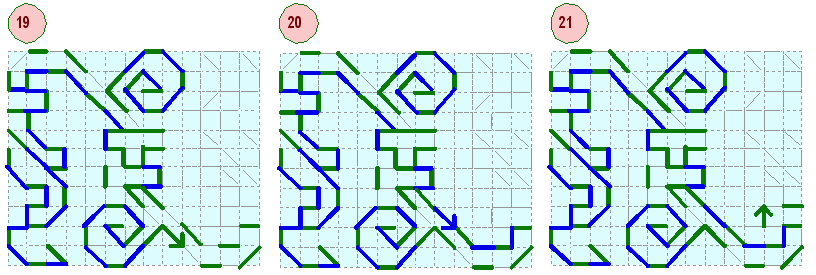
To parse out the stitching logic, let’s look at a half repeat. I’ll illustrate the entire stitching path for one half repeat. The logic to complete a whole repeat is very much the same. In the pix below, green indicates my first pass of double running, and blue marks a return path, in which I retrace my steps. The first stitch and its direction in any pass or return is marked by an arrow. Click on any of the drawings to enlarge. And please keep in mind that the method below is just one of a huge number of possible paths through this particular pattern. Path planning and trying out different strategies is what keeps this style of stitching fresh to me. Which is to say there’s no guarantee at all that I work every repeat in exactly the same manner. YMMV.
To work this design double sided, I’d start along the baseline leaving at least three inches of thread extra on the back (no knots). I find it helpful to wind the excess around a pin placed in an inconspicuous spot. I travel along the baseline (1) in double running stitch until I encounter a branch. My preferred logic is to then follow the branch to its end, then turn back and fill in the “every other” running stitch, to eventually return to the baseline (2). Then I continue on to the next branch decision and follow that detour (3).

In this case I’ve gotten to the first of the double bracelets on the main stem. Unless a branch is a turn left only branch, given a choice, I tend to turn right. Gamers, the mathematical and those who study behavioral sciences or robots/autonomous navigation will recognize this – it’s a classic. Any maze can be successfully navigated by putting one’s hand on the right hand (or left hand) wall, and following it, without taking one’s hand from the wall. The path traced may not be the most efficient, but sooner or later, the wall-hugging, maze-wandering mouse, robot, or high school topology student will emerge from the exit.
So here I am at the top of the brackets. I could continue down and wander around the bracelets, or I can turn right again and follow the main stem back to the half-heart motif on the left edge of the swatch area. I take a right hand turn from my line of travel, and stitch back up to the main motif (3). When I get there, I notice one little tiny detour – the single stitch between my current line and my starting point. (4) makes quick work of that. Then I continue around the necklace at the base of the heart motif. Again I turn right (5), then double back on my path and continue down and around the wing at the base of the heart (6).

After completing the first pass at the base of the heart and ending up at my “bounce line” – the centermost point of the strip repeat – I do a mini-step back to the heart’s outline (7), then I continue around the heart’s perimeter, eventually reaching the detour point to complete the small inset detail in the heart’s center (8). Again I stitch to the bounce point, and then return to the heart’s perimeter (8).

Once I’m back at the edge of the heart, I can do the antenna that sticks up from its top (9). Heading back from there turns out to be a long run all the way back to my baseline, filling in all of the “missing” stitches to complete the first half of the left hand heart motif (10). Now for a minorly tricky bit – one that folk unfamiliar with double running stitch logic occasionally miss – the little detours that fill in the bracelets around the stem. It’s easy to miss stitches in these, and very easy to get lost, not remembering which way to turn next. We’ll step through.
The first bit is to progress along our baseline. The initial stitch is marked with the arrow. I work it, then the two stitches along the bottom of the upper bracelet, followed by the stitch that completes the three that define the top of the bracelet (12).

Time to head back to the baseline, but it’s not very far away. One stitch brings us back to it (13). On the next step because it’s extra confusing, I’ve marked two stitches with arrows. First I head south from the upper bracelet, then work around the lower one (14). There’s now one stitch left to finish defining the box between the two bracelets. I take that one stitch (15).

Now I’m ready to return to the baseline again. A couple of quick stitches takes me there (16). If you look at the work now, you’ll see only one “unfilled” path through the two bracelets area. That’s the path of our baseline. All of the other stitches have been completed, and none are orphaned, unworked. Now to progress along the baseline again. I detour for the little side curl, worked there and back again style just like I did before (17, 18) landing me back on the baseline again.

The logic should be a bit more obvious by this point. I progress along the baseline, making a detour back up to complete the outline of the stem unit (19). And back again to the intersection just below the necklace at the base of the next heart flower (20), and up around it (21).
Now I move on to the wing section that defines the lower edge of the flower (22). As before, having hit the center point, I head back to the outer edge of the heart (23), then continue around the heart’s perimeter, and down into its center detail (24).

Almost done now, there’s just heading back out to the edge of the heart (25), and doing the first half of the antenna (26). Our grand finale is here! Starting at the antenna, we work all the way back around the heart’s edge, and then all the way back to the beginning of our pattern, following the established baseline. At this point there’s no more counting, just following the snail trail laid down before (27):

It’s done! The entire half repeat – worked 100% two sided in double running stitch, with no little orphaned areas left unstitched. We worked through the baseline concept on a pattern of moderate complexity, stitching along detours as they present themselves, always returning to the baseline before moving on, and leaving one long final unifying run along that baseline to finish off the pattern. Yaay!
O.k., some of you ask. “Smarty pants, that all works great for the half-repeat shown above, but what about the full repeat?” I answer – the logic is the same. With the exception of the antenna which needs to have both “ears” worked one after another the first time they’re encountered, the stitcher can follow the “to the center” logic above, verbatim, or can work each heart flower as an entire unit when it is first encountered, following around its entire perimeter up to the point of return to the baseline before doubling back around the heart to arrive at the original spot of departure from the baseline.
If you’ve got questions about this logic, please post them. I’ve already gone on long enough for one post. The next post will be on the accreted section method and when to use it or the baseline approach. The series will end with how to finish off ends invisibly for double sided work. Hope this is helpful!
DOUBLE RUNNING STITCH LOGIC 101 – TWO SIDED WORK AND BASELINE IDENTIFICATION
Surfacing…
There’s been a discussion of late on the Yahoo Blackwork embroidery discussion group about stitch order, direction and stitching logic in double running stitch – especially reversible (two sided) double running stitch. I contributed to the discussion with these thoughts, but the answer below is a bit of an elaboration on my original discussion group post.
Double Sided Double Running Stitch – Is it possible for your chosen pattern?
The first thing to do is to determine whether or not your contemplated design can be done 100% reversible. Those that can have every design element connected. There are no floating little diamonds or sub-motifs off on the side un-connected to the main design. This simple design is easy to do two sided:

This one, although vastly more complex, only presents a couple of challenges. The center diamond in the nodule at the base of the plume flower is one. Every other element is connected, but that one diamond stands alone. If I were to work this design double sided, I’d add a stitch to the top and bottom points of the diamond to connect it to the rest of the design. The visual impact of that modification would be minuscule. The other challenge is the presence of some detached stitches in the “bark” area of the branches – the little floating verticals unattached to the main body of the work. If I were to do this one double sided, I’d either omit them, or lengthen them to intersect with a segment of the branch’s outline. A pain, but not totally fatal, and both changes wouldn’t be very evident.

By contrast the column and wreath design below, though simpler, presents a greater challenge for two-sided stitching. Each of the small circlets in the centers of the wreath units stands alone. Attaching them to the rest of the work would diminish the impact of the design. Although the rest of the design can be worked entirely two sided, the circlets are problematic because they’re free floating and rather small. If they were worked independently, with their own lengths of thread, there isn’t enough real estate in each one to cleanly hide the thread ends.

Much of this mermaid panel can be worked double sided, but by now you can spot the facial features, fruit dimples, flower centers (and prominent nipples) as presenting problems that can’t be solved by modifying the design. BUT the small dolphins, although separate from the main pattern aren’t a problem. They’re big enough to stitch with their own threads

O.k. Now we’ve determined which designs can be done double sided without modification – the ones that have no isolated design elements. On to stitching logic.
Stitching Logic – Baseline
I use two methods for completing a double running stitch pattern – baseline and accreted section. I’ll tackle baseline first
Baseline Identification
In the baseline method, the stitcher identifies a line that travels the entire length of the pattern. That’s the baseline. It can be obvious, like a stem from which all of the pattern’s flowers grow, or part of an outline; or it can be less obvious. In this oak leaves and acorns border, one baseline is blindingly obvious:
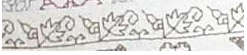
It’s the ground line from which the little motifs sprout.
In this pattern it’s slightly less clear. Any one of several options can be used as an effective baseline:
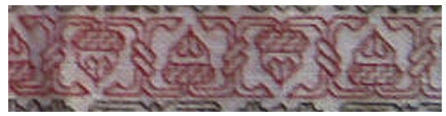
Here’s one possible baseline:
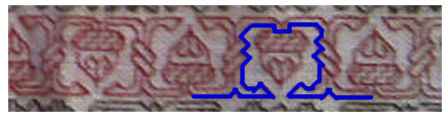
Every other element of the design can be worked as a detour off this main highway. You’ll note that the baseline needn’t march around the perimeter of the acorn. In fact the entire acorn is one nested set of detours. And this isn’t the only possible baseline. Here’s a more efficient though less intuitive one:
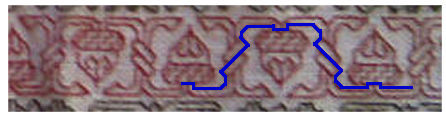
Both are perfectly logical. I might use the one at the top if I wanted to quickly establish the height of my piece. It’s just one unit shy of total pattern height. But the only reason to chose one or the other is personal preference. Please note that the logic of these to baselines applies equally well to the horribly complex plume flower:
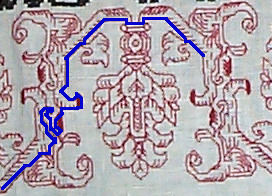
I’d suggest folk new to double sided work start with patterns with easily identified baselines, and work up to some of the more daunting patterns.
Next post – stitching logic. Traveling along the baseline and its detours.
 String-Or-Nothing
